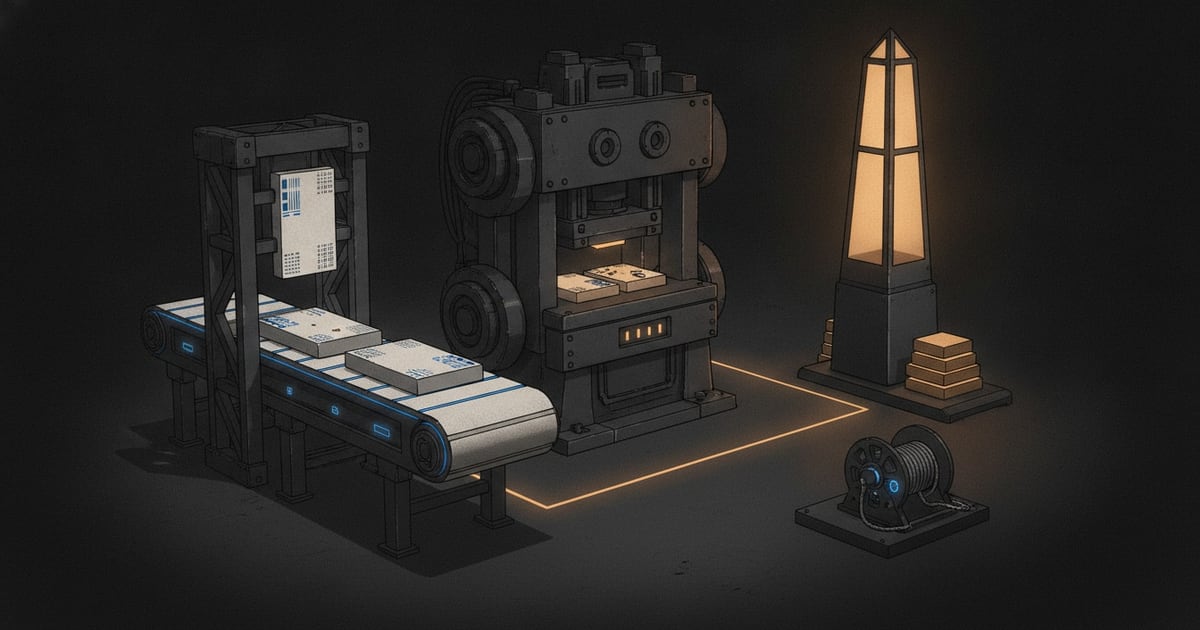
One-shot mode runs the packet loop from your terminal. It prepares the repository, moves each selected board task through implementation, syncs packet updates back to SwarmCraft, and moves completed customer one-shot work to done by default.
Use this flow when a project board should be set up and advanced before the customer continues in VS Code or the browser.
If you prefer to start from VS Code, run SwarmCraft: Run One-Shot with CLI after the CLI is installed and signed in. VS Code launches the same swarmcraft one-shot command and records the manifest path in the SwarmCraft output channel.
During a run, the CLI prints task and stage progress. Agent output is written under:
.swarmcraft/runs/<run-id>/logs/
Start from a clean repository
Commit or stash unrelated changes first:
git status --short
The CLI refuses a dirty workspace by default because one-shot work may edit many files. Use --allow-dirty only when you intentionally want the run to start from existing local changes.
Run the board
Start with a limited run when you are proving a new customer setup:
swarmcraft one-shot \
  --project <project-id> \
  --workspace . \
  --agent-provider codex \
  --task-limit 1 \
  --max-agent-requests 6 \
  --commit-policy done
Run the full board after the first task proves the setup:
swarmcraft one-shot \
  --project <project-id> \
  --workspace . \
  --agent-provider codex \
  --max-agent-requests 100 \
  --commit-policy done
Use --agent-provider copilot for the Copilot CLI, or use --agent-provider custom --agent-command '<command with {command}>' for a different local agent wrapper.
Lane policies
The customer CLI one-shot policy is:
- implementation runs in
doing - checking is off
- reviewing is off
- completed tasks move to
done - no local commit is created unless
--commit-policy doneis supplied
Enable extra lanes only when an internal or customer run explicitly needs them:
swarmcraft one-shot \
  --project <project-id> \
  --workspace . \
  --agent-provider codex \
  --checking on \
  --reviewing on
--checking on runs the checking lane. With checking off, the driver ignores the implementation skill's normal checking handoff, syncs its evidence, and moves accepted work directly to done. --reviewing on stops accepted work in reviewing instead of moving it to done. --commit-policy done creates a local git commit for completed task changes.
Budgets and credentials
Limit the number of agent stages:
swarmcraft one-shot \
  --project <project-id> \
  --workspace . \
  --agent-provider codex \
  --max-agent-requests 100
If the selected agent writes cost telemetry, require and cap it:
swarmcraft one-shot \
  --project <project-id> \
  --workspace . \
  --agent-provider custom \
  --agent-command '<command with {command}>' \
  --agent-api-key-env-name MY_AGENT_KEY \
  --agent-env-file .env/agent.env \
  --require-cost-telemetry \
  --max-agent-spend-usd 25
The CLI passes only a restricted environment to the agent process by default. Use --agent-api-key-env-name when one explicit credential should be made available.
Resume and status
Each run writes a manifest under:
.swarmcraft/runs/<run-id>/manifest.json
Check progress:
swarmcraft status --run <run-id> --workspace .
Resume after a failed command, terminal cancellation, or machine restart:
swarmcraft resume --run <run-id> --workspace .
Resume keeps completed tasks and restarts from the last safe incomplete task.
If the run reached its request ceiling, explicitly extend that ceiling while resuming:
swarmcraft resume --run <run-id> --workspace . --max-agent-requests 100
VS Code starts with a 100-request limit. Before launch it estimates the capacity required by unfinished tasks and the selected checking policy; when that estimate is higher, it asks you to approve the larger limit instead of starting a run that is expected to stop partway through.
Recovery
If SwarmCraft reports a stale revision, refresh the project board, inspect the packet, and rerun resume. A stale revision means the board changed after the packet was written.
If an agent stage fails, read the terminal output and the run manifest, fix local setup or agent credentials, then run resume.
If the repository has partial local changes, review git status --short before resuming. Commit, stash, or discard only changes you understand.
If a packet identity or lane mismatch appears, stop and inspect the packet frontmatter before editing the board. The CLI blocks these cases to avoid syncing the wrong task.
Support bundle
Collect a redacted support bundle when you need help diagnosing a run:
swarmcraft support-bundle --run <run-id> --workspace .
The bundle is written under:
.swarmcraft/runs/<run-id>/support-bundle/
It includes a redacted manifest, run id, selected policy, failed stage details, and artifact paths. Review the files before sharing them with support.