SwarmCraft's delivery loop runs from the VS Code activity-bar view. You move one task at a time across the board, copy the right AI action command, give that command to your assistant, and let the packet file keep VS Code and the SwarmCraft project board in sync.
Before you start
Sign in before you try to move tasks or copy commands. If you have not done that yet, follow Sign in and set up MFA, then come back to this guide.
You should also have the repository open in VS Code and connected to SwarmCraft. If the extension is not pointing at the right workspace folder, follow Connect SwarmCraft to your project.
SwarmCraft supports both GitHub Copilot and Codex handoff commands. Copilot is the default. To switch a workspace, run SwarmCraft: Choose AI Provider and choose either GitHub Copilot or Codex. Copilot uses /plan, /do, /check, /review, and /test prompt commands. Codex uses $swarmcraft-plan, $swarmcraft-do, $swarmcraft-check, $swarmcraft-review, and $swarmcraft-test skills. Both provider surfaces also include an optional prototype skill for making an uncertain workflow experienceable before you finalize the decision.
If you need to bootstrap and run an entire project board from the terminal, install the SwarmCraft CLI and follow Run one-shot with the CLI. After the CLI is installed and signed in, SwarmCraft: Run One-Shot with CLI can launch the CLI from VS Code. VS Code remains the best place for interactive task-by-task work.
1. Read the project lanes
Open the SwarmCraft activity-bar view in VS Code. The extension shows your unlocked projects and their tasks grouped into the same five lanes as the web board. Read Use the project board for the canonical explanation of every lane, card, checklist, and review loop.
Each task moves one lane at a time. The extension creates and updates a packet file in your repository so the AI agent has the exact task goal, checklist, notes, and current lane.
2. Move your first task to Doing
Right-click the next task in Todo, then choose Move to Doing.
This does three things:
- Moves the task into the
Doinglane. - Creates or refreshes the local packet file under
.swarmcraft/projects/. - Opens the packet file and copies the implementation command to your clipboard when possible.
If VS Code asks you to trust the workspace before SwarmCraft writes packet files, grant trust only for repositories you trust.
3. Copy the SwarmCraft command
If the command was not copied automatically, or if you need it again, right-click the linked Doing task and choose Copy SwarmCraft Command.
The copied command points your AI assistant at the packet file. The command format depends on the selected AI provider.
For GitHub Copilot, Doing looks like this:
/do task=.swarmcraft/projects/<project>/<task>.md
For Codex, Doing looks like this:
$swarmcraft-do task=.swarmcraft/projects/<project>/<task>.md
The primary SwarmCraft actions are:
| Action | Use it for | Copilot | Codex |
|---|---|---|---|
plan | Create a new plan or task, or check that an existing plan is still coherent. | /plan scope=<project> | $swarmcraft-plan scope=<project> |
do | Implement a linked packet in Doing. | /do task=<packet-path> | $swarmcraft-do task=<packet-path> |
check | Validate a linked packet in Checking. | /check task=<packet-path> | $swarmcraft-check task=<packet-path> |
review | Support human approval for a linked packet in Reviewing. | /review task=<packet-path> | $swarmcraft-review task=<packet-path> |
test | Add or run system-test coverage for a project or packet. | /test scope=<project> or /test task=<packet-path> | $swarmcraft-test scope=<project> or $swarmcraft-test task=<packet-path> |
prototype | Build or revise a disposable local prototype to understand a workflow decision. | /prototype scope=<decision> | $swarmcraft-prototype scope=<decision> |
SwarmCraft seeds both provider adapter sets into trusted repositories when it can map one unlocked project to the selected workspace. Copilot uses .github/prompts and .github/skills. Codex uses .agents/skills. The packet file under .swarmcraft/projects/ remains the shared execution contract for both providers.
The plan and test actions do not add new SwarmCraft board lanes. plan can help you draft a provisional Todo packet or review whether an existing plan has gone stale. test can add testing evidence to a packet or draft a testing-focused Todo packet. prototype is a separate collaborative decision aid rather than a packet action: it creates disposable review material under docs/prototypes/, and reviewed decisions may inform plan, do, check, and review. Tests continue to follow the current packet and acceptance criteria rather than prototype screenshots or stale fixture states. Sync promotion still happens through the extension's packet sync workflow.
4. Choose the implementor agent
Open your AI chat in VS Code and choose the SwarmCraft Implementor role agent if it is available. If you are using Codex, use the copied $swarmcraft-do command with the seeded Codex skill instead. The stable handoff is the do action command; role agents are helpers for the lane work.
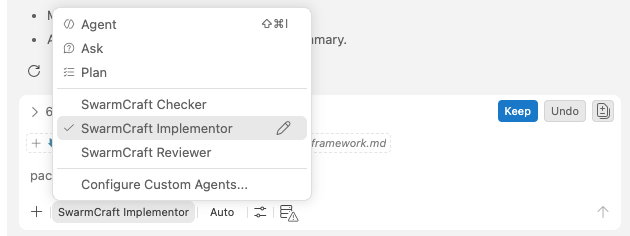
The implementor agent reads the packet, inspects the relevant code, makes the smallest useful implementation change, runs focused validation, updates the packet, and moves the packet lane to checking when the work is ready.
5. Paste the command into chat
Paste the copied implementation command into the agent chat and send it.
Keep the packet file open while the agent works. The packet is the shared record between the task, the agent, and the repository.
6. Allow commands carefully
If this is your first time using an AI agent inside VS Code, it may ask for permission before running terminal commands.
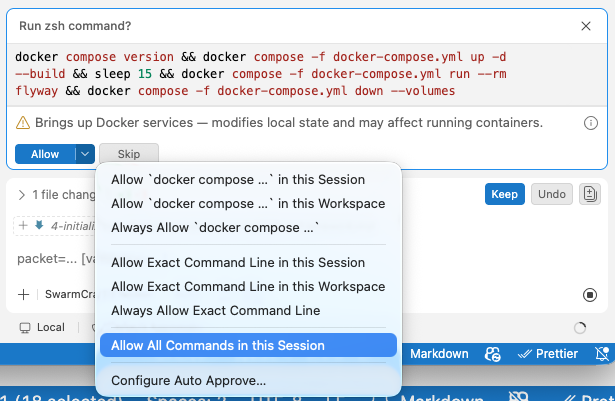
Choose the approval level you are comfortable with. Allow all commands in this session is faster, but approving individual commands gives you more control while you are learning the workflow.
Read the command before approving it. If you do not understand what the agent wants to run, ask the AI assistant to explain the command and why it is needed.
7. Watch the task move automatically
When the implementor finishes successfully, it updates the packet file. The SwarmCraft extension watches supported packet-file changes and syncs them back to the project board. That means you can watch the task move in the browser as the packet moves from doing to checking.
The extension syncs supported packet changes such as checklist completion, notes, agent updates, packet linkage, and adjacent lane moves. If the browser board is open, it should reflect those updates without you manually copying status back into SwarmCraft.
8. Repeat the same pattern for Checking
Once the task is in Checking, right-click the linked task and choose Copy SwarmCraft Command again.
For Copilot, this time the command is:
/check task=.swarmcraft/projects/<project>/<task>.md
For Codex, it is:
$swarmcraft-check task=.swarmcraft/projects/<project>/<task>.md
Choose the SwarmCraft Checker agent, paste the command into chat, and let it validate the work. The checker should run focused tests or checks, update the Checking checklist, add validation notes, and move the packet to reviewing when the work passes.
If checking fails, the checker can move the packet back to doing with feedback. Copy the implementation command again, return to the implementor, and fix the issue before checking again.
9. Repeat the same pattern for Reviewing
Once the task is in Reviewing, copy the command again. For Copilot, it is:
\review task=.swarmcraft/projects/<project>/<task>.md
For Codex, it is:
$swarmcraft-review task=.swarmcraft/projects/<project>/<task>.md
Choose the SwarmCraft Reviewer agent and paste the command into chat.
The reviewer agent helps you understand what changed, what validation evidence exists, and what still needs a human decision. Read the packet, the review notes, and any relevant project documentation before approving checklist items. If something is unclear, ask the AI assistant to explain the change, summarize the affected files, or walk through the risk.
The reviewer should not move the packet to done. It prepares the review and tells you when the task is ready for the extension's final Move to Done action.
10. Move the reviewed task to Done
After the reviewer has recorded your approval and says the packet is ready, right-click the Reviewing task and choose Move to Done.
The first time you do this in a workspace, SwarmCraft shows a commit warning:

This warning means SwarmCraft is about to create a local Git commit in your repository before it moves the task to Done. The commit message is based on the task, for example:
Complete <task-id>: <task title>
Confirm the commit only when you are happy with the reviewed changes. If you cancel, the task stays in Reviewing.
The full loop
For each task, the VS Code workflow is:
- Move
TodotoDoing. - Copy the implementation command and run the implementor workflow.
- Let the packet sync move the task to
Checking. - Copy the checking command and run the checker workflow.
- Let the packet sync move the task to
Reviewing. - Copy the review command and run the reviewer workflow.
- Read the review material, ask questions when needed, and approve only what you understand.
- Use the extension's
Move to Doneaction to create the final local commit and complete the task.
Use SwarmCraft: Copy Plan Command from the project when you need to draft a new packet or check an existing plan before work starts. Use SwarmCraft: Copy Test Command from a project or linked packet when you want the assistant to add system-level coverage without changing the lane model.
Why packet files matter
Packet files keep the goal, staged checklist, notes, agent update, and current lane in the repository alongside the code. That makes review easier and keeps the project board grounded in the same working copy you are editing.
When you want more context on build and validation expectations, continue with Build the project.
Keep moving task by task
Be patient with the AI agents while they work. They may need to inspect files, run checks, ask for command approval, or explain a tradeoff before the task can move forward. That is normal.
Your job as the owner-operator is to keep the workflow honest: read the packet, ask questions when something is unclear, approve only what you understand, and keep moving each task across the board. SwarmCraft gives you the lanes, packet files, and agents, but you stay in control of the process.
Work the board one task at a time. Build, check, review, commit, then take the next task. By the end, you are not just watching software get built. You are learning how to own the focused operation you actually need and shape it with confidence.