
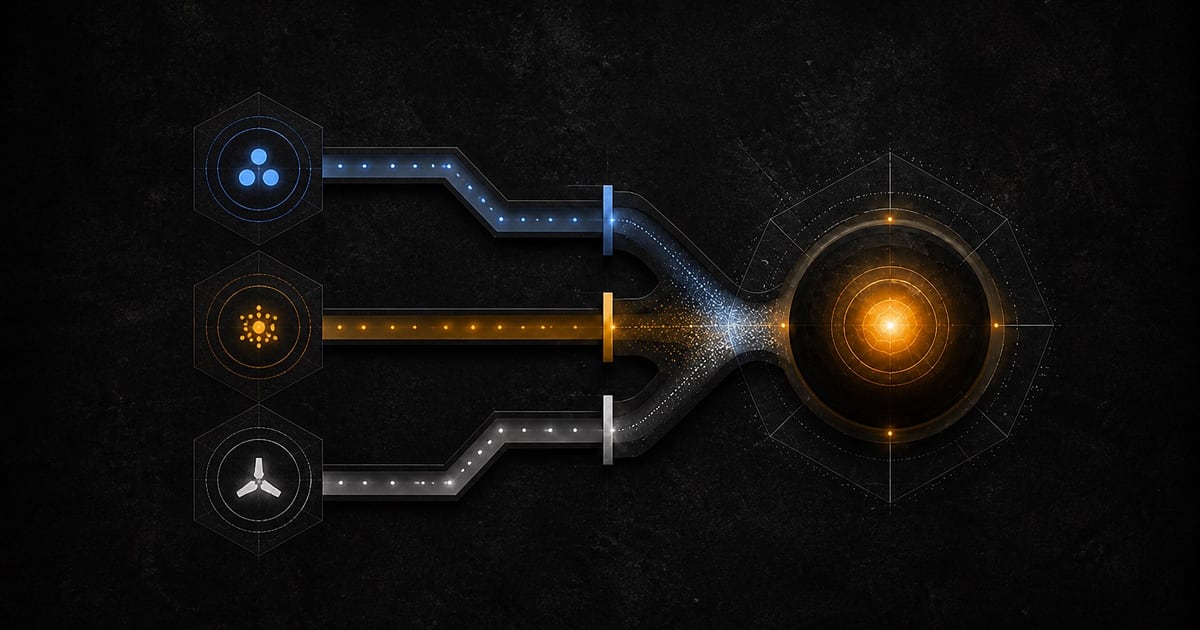
SwarmCraft uses AAA V2 for the web app and VS Code extension. You choose a convenient primary sign-in method, then SwarmCraft requests stronger assurance only when the risk or action requires it.
Setup's GitHub CLI step grants repository access. It does not sign you into SwarmCraft. The VS Code browser handoff below creates the SwarmCraft session after the machine foundation is ready.
Choose a primary sign-in method
Use one of the methods shown on the current SwarmCraft sign-in page:
- GitHub or Google for provider-backed browser sign-in.
- Passkey for phishing-resistant sign-in with a device or password manager that supports it.
- Email and password as the fallback when a provider or passkey is unavailable.
Provider sign-in proves your SwarmCraft identity only. GitHub repository access is a separate GitHub CLI grant and is never inferred from the GitHub button on the SwarmCraft sign-in page.
Sign in from VS Code
- Open the SwarmCraft activity-bar view.
- Run SwarmCraft: Sign In.
- Complete GitHub, Google, passkey, or email sign-in in the browser window that opens.
- Review and approve the extension handoff.
- Return to the initiating VS Code window.
The callback contains a short-lived, one-time code bound to that extension window with PKCE and state. Access tokens, refresh tokens, provider tokens, passwords, TOTP codes, and recovery codes never appear in the callback URL. The exchanged SwarmCraft session is stored only in VS Code Secret Storage.
Understand step-up assurance
Ordinary sign-in does not force an authenticator-app challenge. SwarmCraft can require step-up for a sensitive action, suspicious session, recovery operation, or policy-protected workflow.
Use the strongest method the prompt offers. Passkeys and recently verified provider sessions reduce routine friction while preserving a stronger proof for high-risk actions. TOTP remains an optional account-security method; it is not a compulsory onboarding step.
Treat recovery as a restricted path
Recovery codes and account recovery are break-glass mechanisms, not alternative everyday login methods. Keep recovery material outside the repository and do not paste it into extension prompts, terminal commands, support tickets, or chat.
Recovery may restrict sensitive actions until SwarmCraft re-establishes the required assurance. Support cannot ask for or bypass your password, passkey, provider credential, TOTP value, or recovery code.
After sign-in, choose Fast Start or Deep Discovery. Deep Discovery binds a projectless workspace before creation. Use Connect a ready project only after a project exists.