
SwarmCraft Setup is the recommended way to prepare a supported macOS or Windows machine. It detects first, explains every proposed change, and preserves working tools and settings.
Before you start
- Download the signed installer for macOS or Windows 11 from SwarmCraft Setup.
- Close work you cannot afford to interrupt before approving an action that requires elevation or restart.
- Keep access to the GitHub account you want to connect.
Review this machine
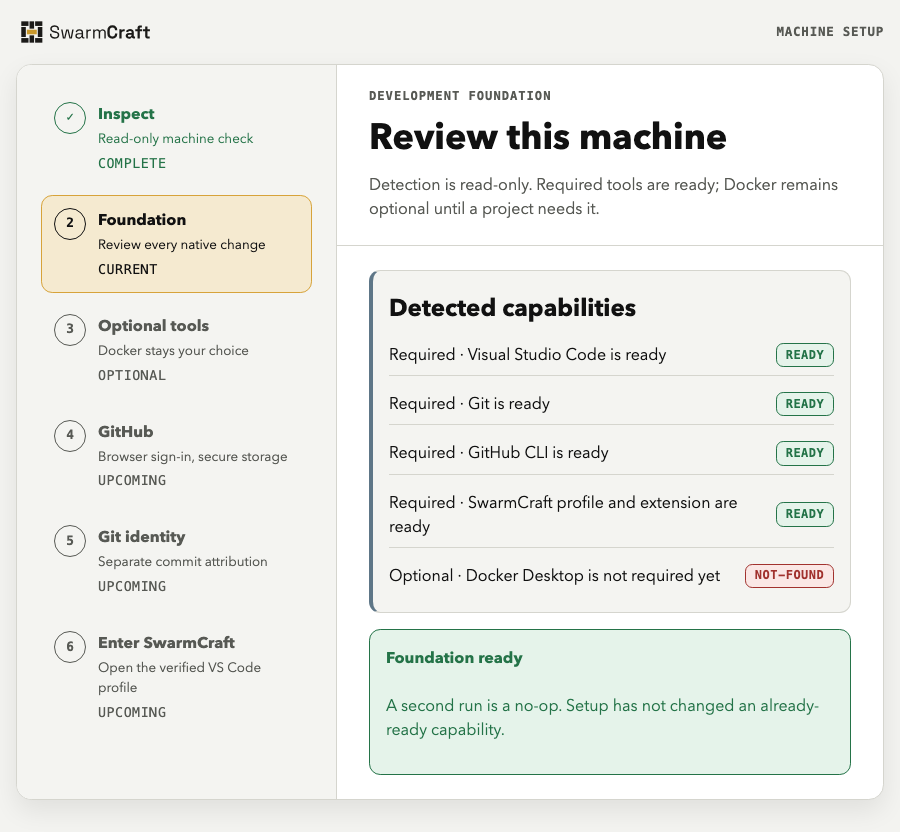
Open Setup and let its read-only inspection finish. Required tools are Visual Studio Code, Git, GitHub CLI, the dedicated SwarmCraft VS Code profile, and the SwarmCraft extension. Docker Desktop remains optional until a project requires containers. Setup does not reinstall, downgrade, or adopt an already-ready tool.
Review and apply changes
Select Review and apply only after checking the action scope, third-party terms, elevation requirement, and restart implications. Setup applies one approved action at a time and inspects the machine again afterward.
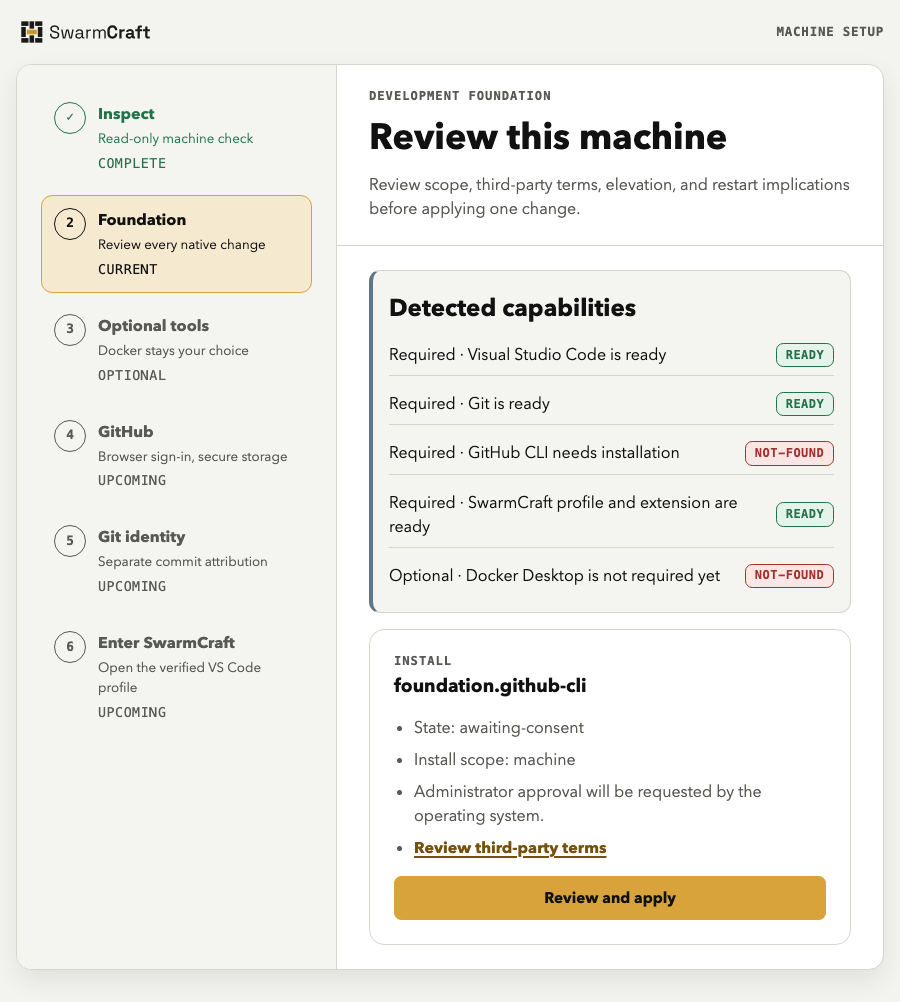
An operating-system or vendor prompt may remain open while an action runs. Do not start the action again; finish or cancel that prompt, then let Setup re-detect the machine.
Connect GitHub
Continue to the GitHub connection step. Setup starts GitHub CLI's browser authentication and verifies the resulting keyring-backed connection without displaying or storing the credential.
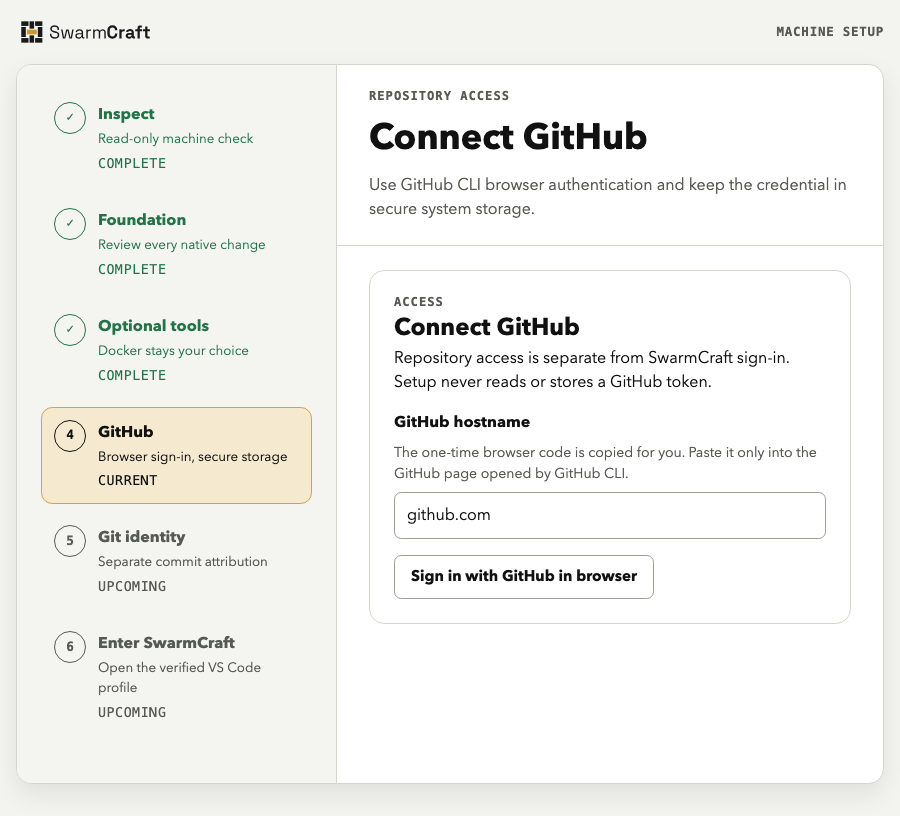
Paste the one-time code only into the GitHub page opened by GitHub CLI. This repository grant is separate from signing in to your SwarmCraft account later in VS Code.
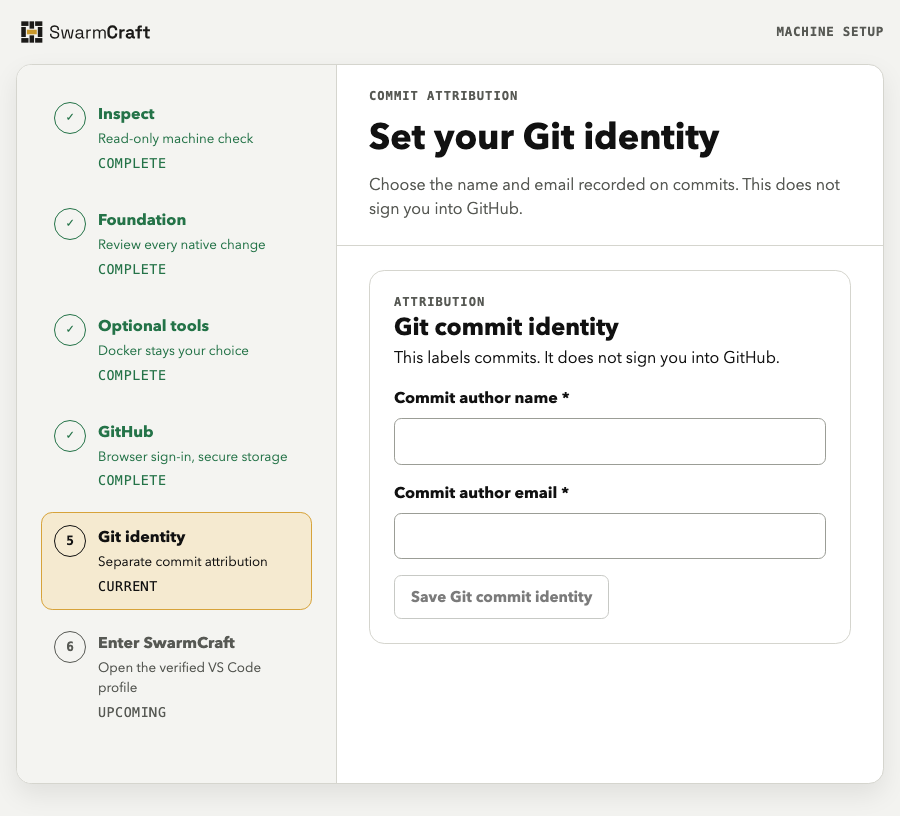
Set your Git identity
Enter the name and email that should be recorded on commits. This identity is separate from GitHub sign-in and does not replace another profile's Git configuration.
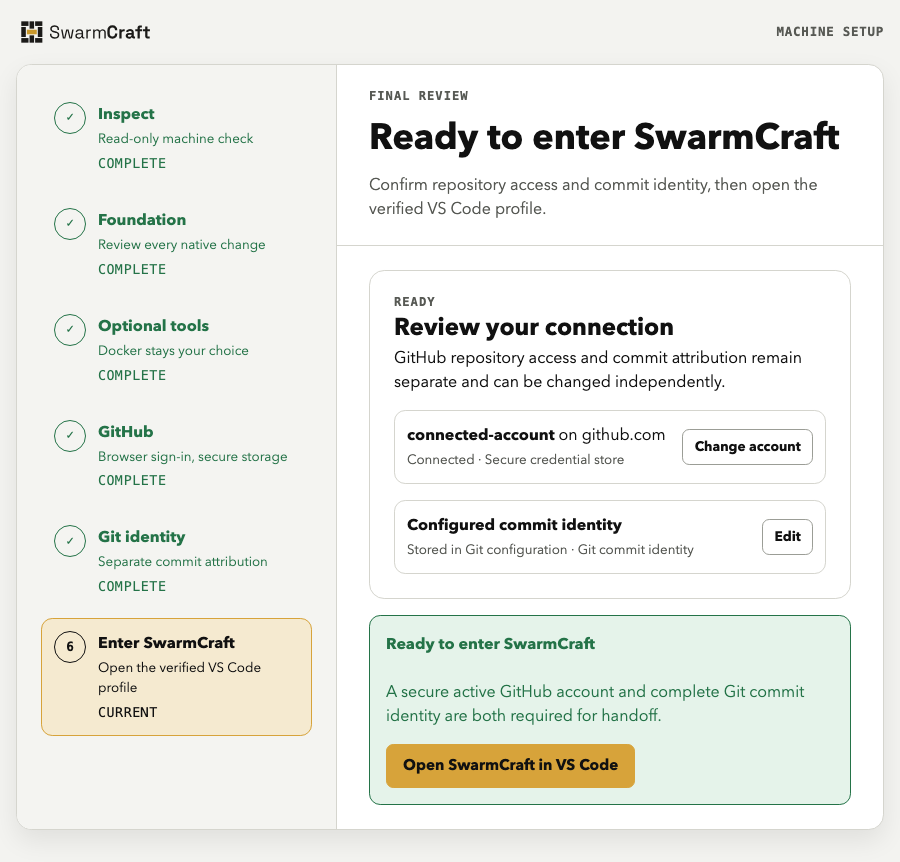
Enter SwarmCraft
Review the final connection summary, then select Open SwarmCraft in VS Code. Setup opens the dedicated profile at the extension welcome screen with no token, account data, or repository path in the handoff URI.
In VS Code, confirm the SwarmCraft view opens, then sign in to your SwarmCraft account through the browser. At this point the machine is ready; a repository or project is not connected yet.
Run Setup again safely
You can run Setup again after an update, cancellation, restart, or repair. It re-detects live state and proposes only outstanding work. A ready second run is a no-op.
If Setup reports a partial result, cancellation, insecure credential storage, offline state, unsupported environment, or required restart, use Setup and connection recovery. Use the Manual setup checklist when your organisation owns software distribution or you deliberately want to manage each vendor installation.