
Next, you’ll choose the folder on your computer where you’ll work on your app and check that you can open the right project’s board. This tells SwarmCraft where to put the files that support your work, alongside your app’s code.
You’ll need a local copy of your app’s repository—the folder containing its files and Git history. If you don’t have one yet, follow Prepare or choose a trusted repository. If you haven’t signed in to SwarmCraft through VS Code, follow Sign in and secure your account first.
Open your app’s folder
In VS Code:
- Use File → Open Folder to open the folder containing your app’s repository. If it is already open, keep using that folder.
- If VS Code asks whether you trust the folder, grant trust only if you own it or trust its contents. SwarmCraft needs that permission to write files there.
- Open the SwarmCraft view from the icon bar on the left.
Choose the folder SwarmCraft will use
In VS Code:
- Open the Command Palette with Cmd+Shift+P on macOS or Ctrl+Shift+P on Windows.
- Run SwarmCraft: Choose Repo.
- If several folders are open, select the one containing your app. With only one folder open, SwarmCraft selects it directly.
- In the SwarmCraft view, check that Workspace folder shows the intended folder’s name.
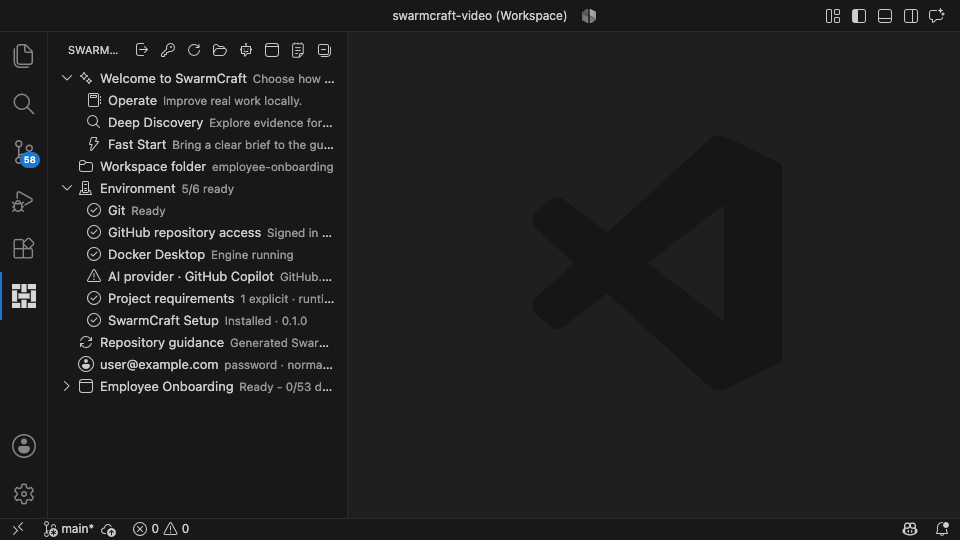
Workspace folder shows employee-onboarding in this example. Check that yours shows the folder you intend to use.
SwarmCraft can prepare the project’s supporting files automatically when it can identify one ready project for this folder. If your account has several ready projects and the folder is not already associated with one, choosing the folder alone does not choose a project. You’ll need to select work from the intended project when you start building.
Check the project’s board
In VS Code:
- Run SwarmCraft: Refresh from the Command Palette to load your projects.
- Run SwarmCraft: Open Board and select the project you want to work on if prompted.
Switch to your browser:
- Sign in to SwarmCraft if the browser asks you to.
- Check that the board belongs to the intended project and shows its tasks.
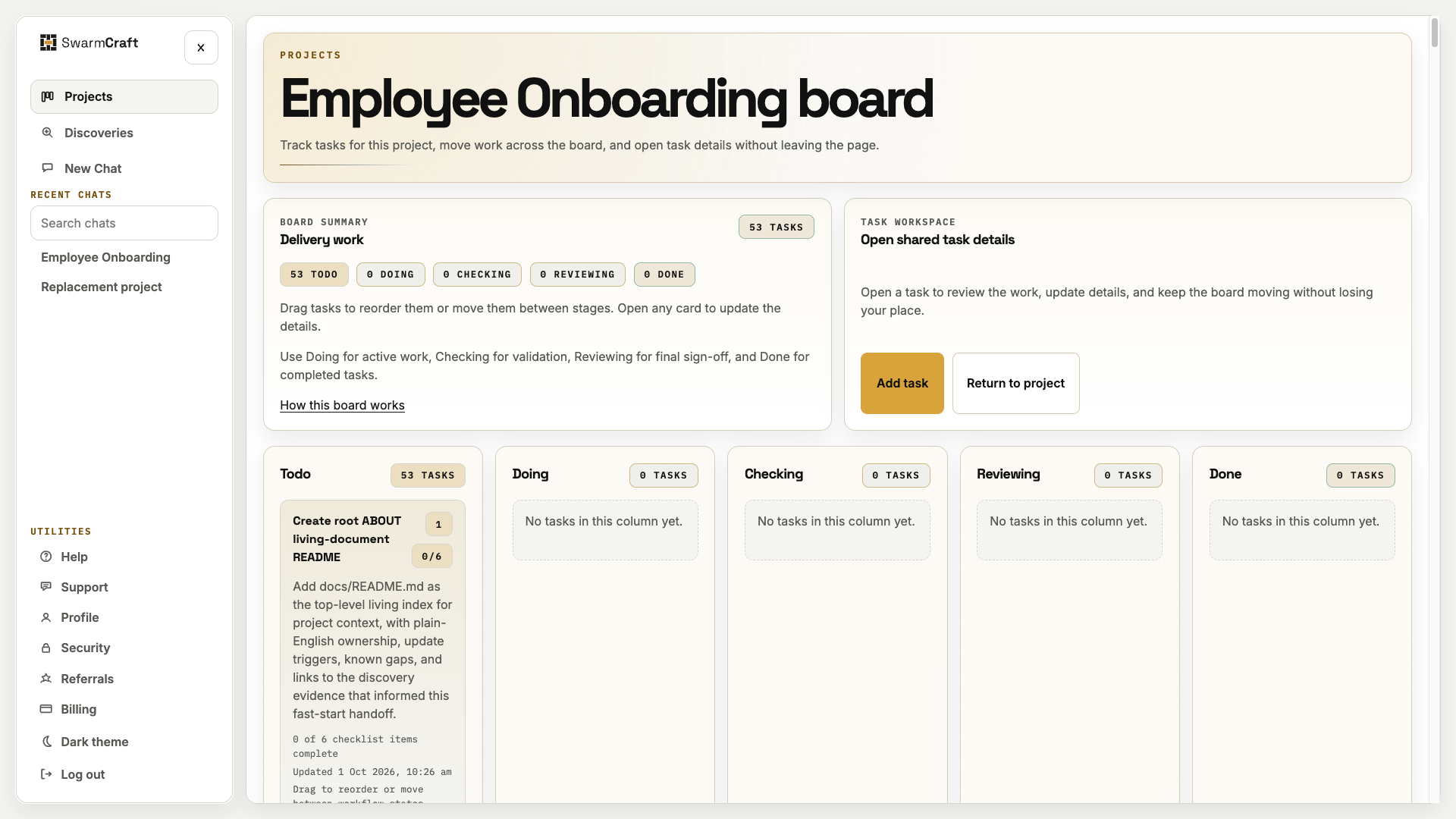
The board title identifies the project, and its tasks appear below. Your project name and task list will be different.
Opening the board confirms that you can access the project. It does not create local task files. When you later use Move to Doing on a task in VS Code, SwarmCraft creates or refreshes a linked file under .swarmcraft/projects/. That file holds the task’s instructions, checklist, and notes; supported updates can then stay in sync with the board.
If the folder or project is missing
- No folder to select: open your app’s folder in VS Code, then run SwarmCraft: Choose Repo again.
- The wrong folder is selected: run SwarmCraft: Choose Repo and select the intended folder before starting a task.
- The project is missing: check that you are signed in to the account that can access it, then run SwarmCraft: Refresh. A project whose board is still being prepared is not ready for delivery yet.
- SwarmCraft cannot prepare the folder: check that you trust it. If several ready projects are available, start from a task in the intended project rather than assuming a folder selection has connected it.
For unresolved connection or sign-in problems, use Troubleshoot SwarmCraft.
Ready to choose your first task
You’re ready to continue when Workspace folder shows the right folder in VS Code and you can see the intended project’s board in your browser. You have chosen where the local work will happen and checked which project you’ll work on.
Continue to Use the project board to understand the tasks and choose where to begin.