
Work alongside the AI agent on one service request, review what it learns, and find the saved facts and procedure in your repository. You can return to that checkpoint later without starting the explanation again. No application project or project board is needed.
Before starting, complete SwarmCraft Setup, or the manual setup checklist if your organisation manages installations. Downloading VS Code alone is not enough. You need VS Code, the SwarmCraft extension, Git with a commit identity, Node.js 20.19 or newer with npm, the SwarmCraft CLI, and a supported AI provider installed, configured and signed in. Follow your provider's setup steps for Codex, GitHub Copilot or Claude Code.
Check that your tools are ready
In VS Code:
- Open the SwarmCraft view from the icon bar on the left. If it is missing, return to the setup instructions above.
- Confirm that your chosen provider's AI chat opens and is signed in. Provider sign-in is separate from your SwarmCraft account.
- Sign in to SwarmCraft before creating an Operate repository or reconciling its AI provider. Existing local Work, validation and repository upgrades do not need a new SwarmCraft sign-in each time.
In the VS Code terminal:
- Run
git --version,node --version,npm --versionandswarmcraft --versionto check that the commands are available. - Run
swarmcraft operate init --help. If the command is missing, follow CLI installation and recovery, then fully quit and reopen VS Code after PATH changes. On Windows, usenpm.cmdandswarmcraft.cmdin PowerShell if needed.
Open the folder for your operation
In VS Code:
- Use File → Open Folder to open a local folder for this operation. Keep it separate from unrelated work. If you already have an Operate repository, open its existing folder.
- Grant workspace trust only if you own the folder or trust its contents.
- Run SwarmCraft: Choose Repo from the Command Palette and check that Workspace folder identifies the intended folder.
- For a new operation, run SwarmCraft: Start or Reconcile Operate. Choose your AI provider, review the folder and proposed setup, then select Seed Operate. The CLI may initialise Git and makes a scoped local checkpoint of validated setup files. Nothing is pushed.
- For an existing operation, complete any offered repository update as described below, then use Continue Work. A folder without an Operate setup needs adoption first, even if it already contains records.
Most record tables will be empty at first. The agent already has a structure for terminology and sources, and can extend the tables as real work requires it. You do not need to design the operation upfront.
Update an existing operation
Updating the SwarmCraft extension makes the upgrade flow available. Your installed SwarmCraft CLI must support it too; follow the tooling update action if VS Code reports that the CLI is older.
In VS Code:
- Open your trusted Operate repository. If an update is available, select Update repository. You can also run SwarmCraft: Start or Reconcile Operate to return to the update. Later leaves your files unchanged; you can still read them, but an incompatible repository must be updated before starting the current Work skill.
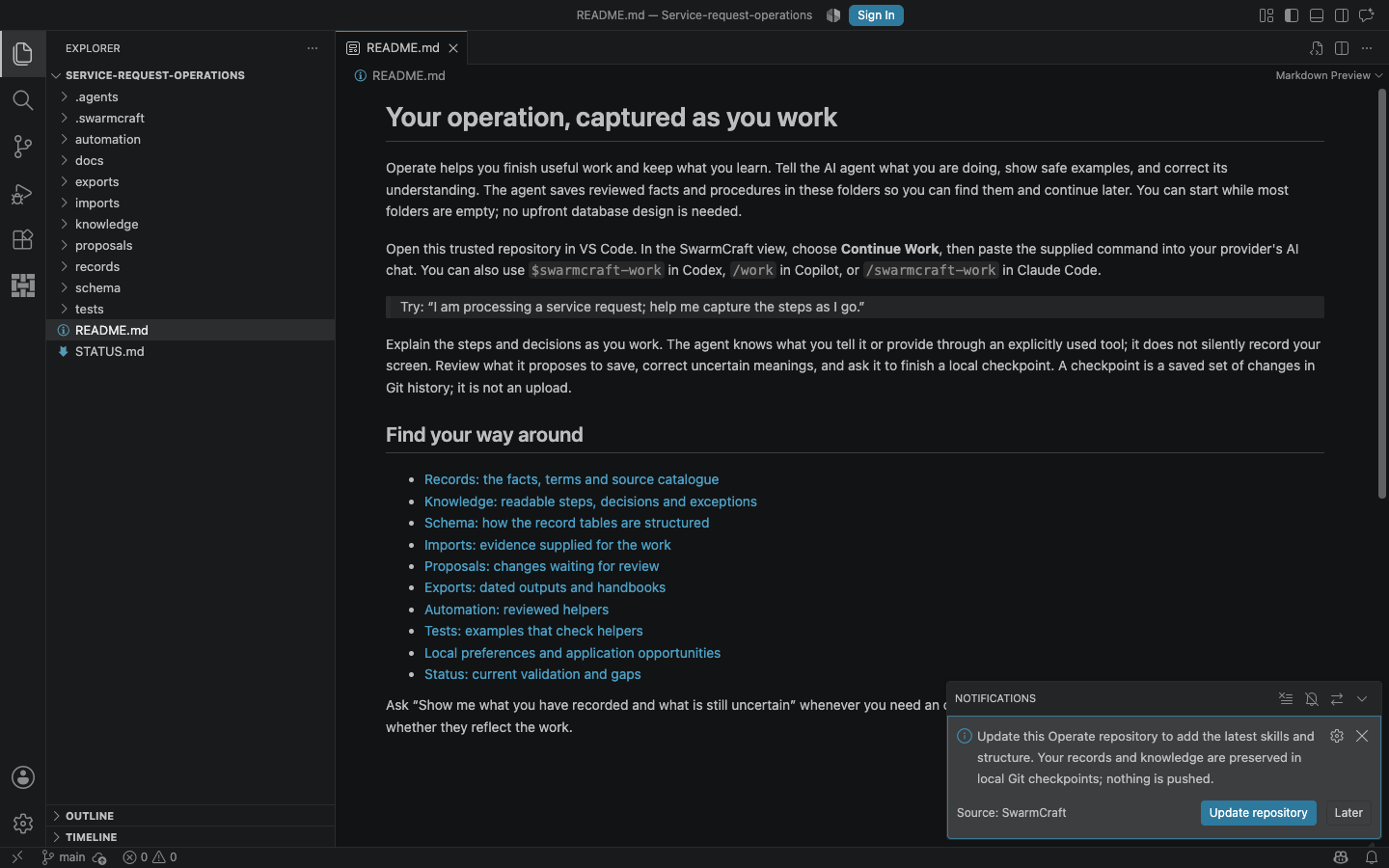
Update repository runs the checks and upgrade. Later leaves your files unchanged.
- If asked to finish a Work checkpoint, return to your AI chat and review and save your unfinished work first. The upgrade will not silently commit or stash your edits. Retry the update when your tracked files and staged changes are clear.
- Wait for Repository updated, then select Continue Work. View details shows any remaining checks. Reload the workspace if the updated skills are not yet visible.
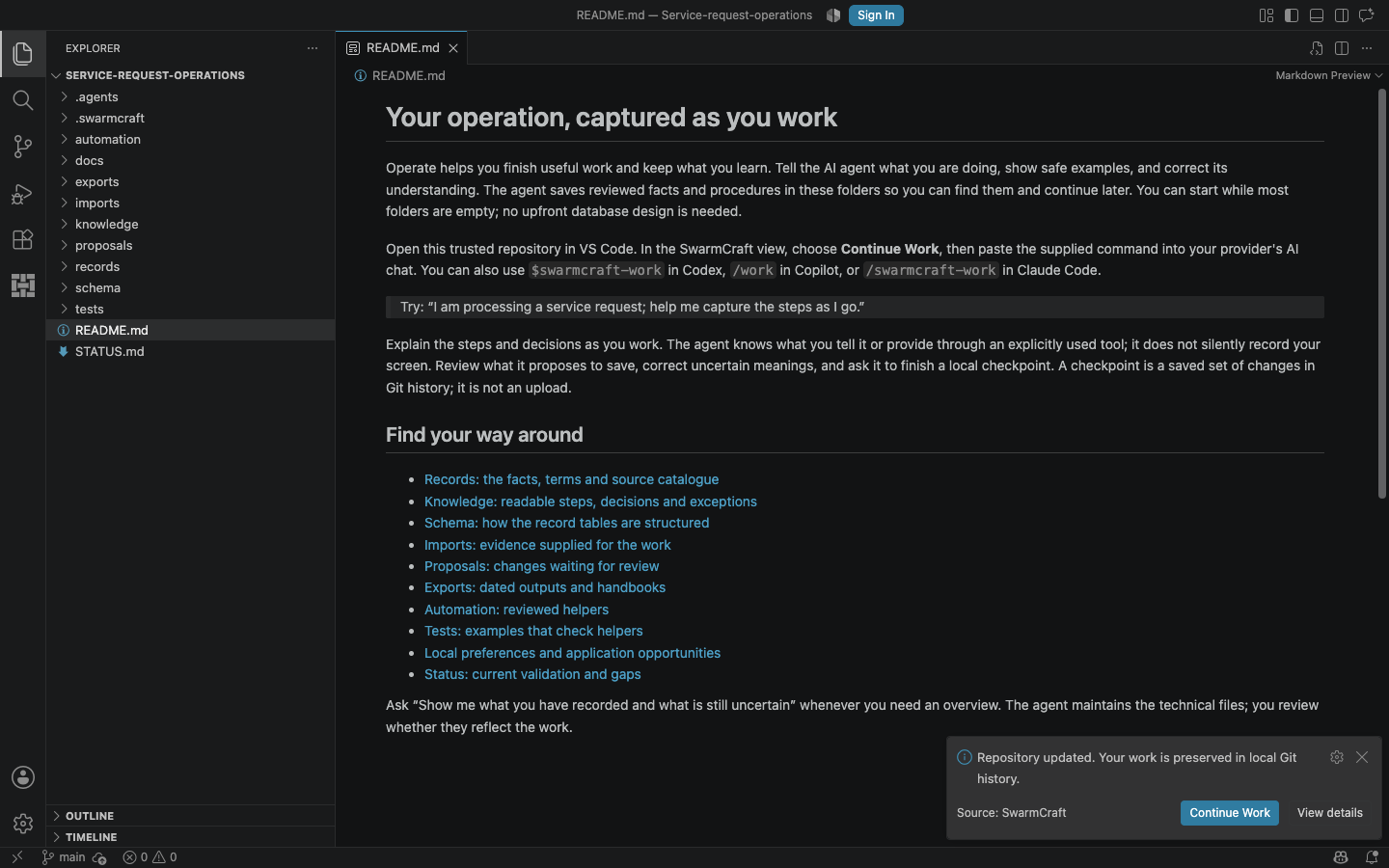
Continue Work resumes the operation. View details explains any remaining checks.
The update checks compatibility before changing files, creates a local Git commit as a recovery point, then commits the validated upgrade separately. Nothing is pushed. Ignored and untracked files, including local evidence and older exports, stay untouched. Historical evidence gaps remain visible; updating the structure does not confirm missing evidence.
If the upgrade reports a customised skill, an unfamiliar source catalogue or a nonempty old rules table, ask your agent to review that specific blocker. Preserve the existing content and resolve its mapping or ownership before retrying; do not discard it to make the update pass. A repository containing records but no Operate setup needs a separate adoption review.
If an update is interrupted, run SwarmCraft: Start or Reconcile Operate again. The CLI recovers its own unchanged writes before retrying. If someone edited an affected file after the interruption, recovery stops so those edits can be preserved and reviewed first. An upgrade requires no new SwarmCraft sign-in or activity-reporting connection.
Start one useful task
In the SwarmCraft view:
- Select Continue Work. The extension copies the command for this repository's selected provider.
- Paste the command into that provider's AI chat. It is
$swarmcraft-workin Codex,/workin Copilot, or/swarmcraft-workin Claude Code. - Add a short outcome and one safe example:
I am processing a service request; help me capture the steps as I go. Use the fictional reference REQ-001. I want a clear outcome record and a reusable intake procedure.
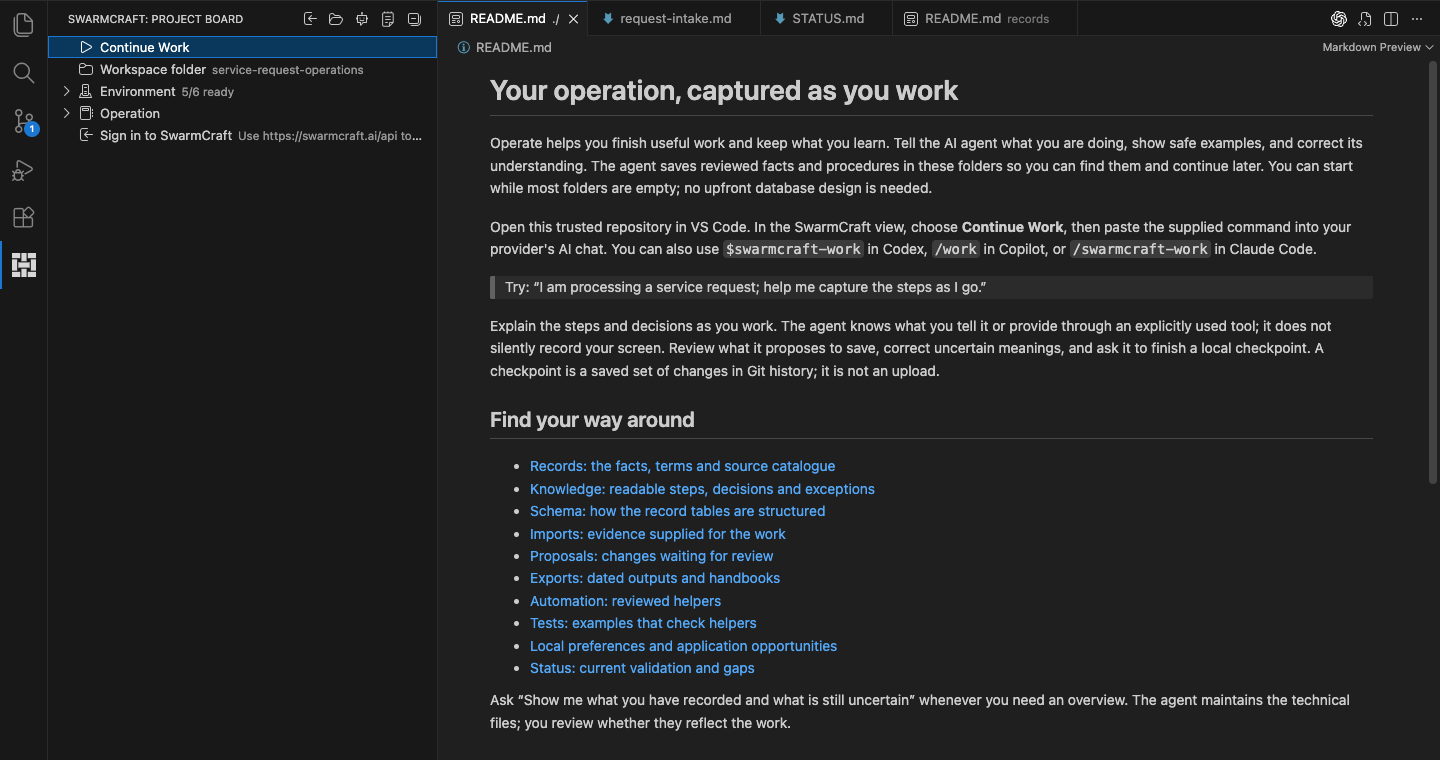
Continue Work is available for the selected operation folder. It copies the provider command; paste it into your AI chat to begin. Existing local Work remains available while signed out of SwarmCraft.
The agent should focus on this task and ask only for information that changes the outcome. If the skill is missing after setup, reload the workspace and check that the installed skills match the selected provider.
Explain the steps as you do them
In your working system, then back in the AI chat:
- Perform a normal step, such as checking the request's reference in your approved system. Tell the agent what you did and what you observed.
- Supply a safe example, reviewed document or scrubbed screenshot when it helps explain the result. Ask the agent to register new evidence; originals and searchable copies go into dated import batches.
- Describe decisions and exceptions at the point they matter. Correct terminology as soon as you notice a mismatch.
For example:
I checked the reference and found a mismatch. Keep the request open until the reference is confirmed.
That term means service request here. Please correct SR in the terminology table.
This is an exception, not the usual process. Urgent requests skip the queue and rejoin at reference review. The completion check is the same.
The agent knows the actions and evidence you supply or make available through an explicitly used tool. It is not silently recording your screen, watching external activity or keeping a complete time log. Saying an external action happened in chat does not independently verify that action. Explain what result you checked.
Keep secrets and unnecessary personal information out of examples. An ignored local file is excluded from Git; that does not determine what your AI provider processes when you supply it to the agent.
Review what will be saved
In the AI chat and VS Code:
- Ask: “Show me what you have recorded and what is still uncertain.”
- Open the proposed note and relevant record changes. Check the usual steps, the exception's branch and rejoin point, the completion signal, terminology and evidence. Identify anything that is only an interpretation.
- Correct the meaning in ordinary language. For example: “Do not close the request until the reference matches. Keep the approval question unresolved.”
- When the bounded result is right, ask the agent to finish it, validate the operation and make its scoped local checkpoint. A change to table structure should include its matching schema definitions; the agent handles that technical work.
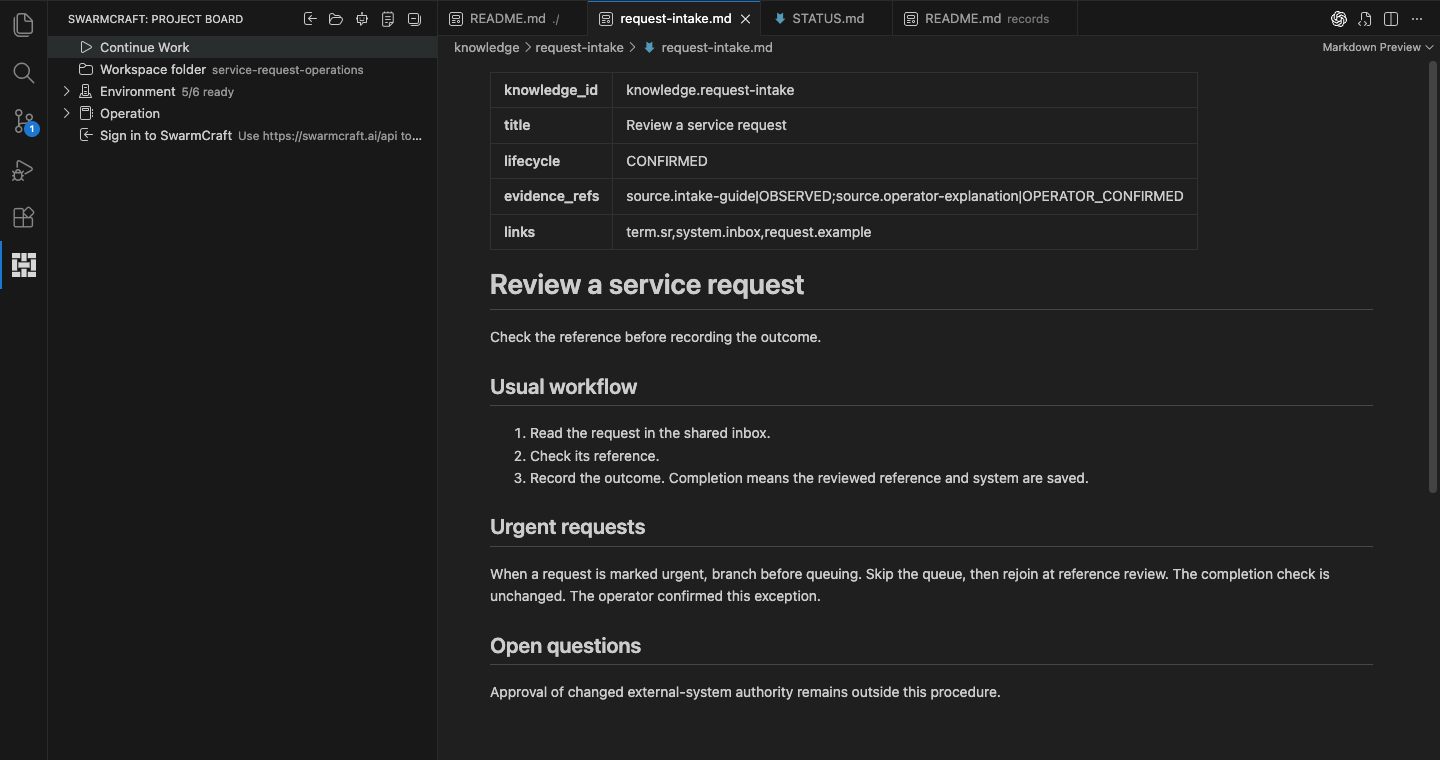
Check the steps, where the exception rejoins, and the unresolved question. Correct the meaning before asking for the checkpoint.
A confirmed note may still contain an explicit open question. Review those limits before treating it as policy or permission to change another system. If validation fails or review is cancelled, the agent should preserve the candidate work and explain the gap without claiming a completed checkpoint.
Find the saved result
In the VS Code Explorer:
- Open
knowledge/index.md, then the note for the task. New notes normally live with their scrubbed images inknowledge/<note-name>/. - Open
records/README.mdfor the table guide and diagram. Each CSV is a table and each data row is a record. Find the term inrecords/terminology.csvand its evidence registration inrecords/sources.csv; ask the agent to locate other task facts rather than guessing a table name. - Open
STATUS.mdand read any findings. The agent rebuilds this summary from inspection; “ready” means structural checks passed, not that every business decision is approved. - Ask the agent to show the checkpoint and confirm which files it saved. A failed Git commit is not a completed checkpoint, even if files are visible in the Explorer.
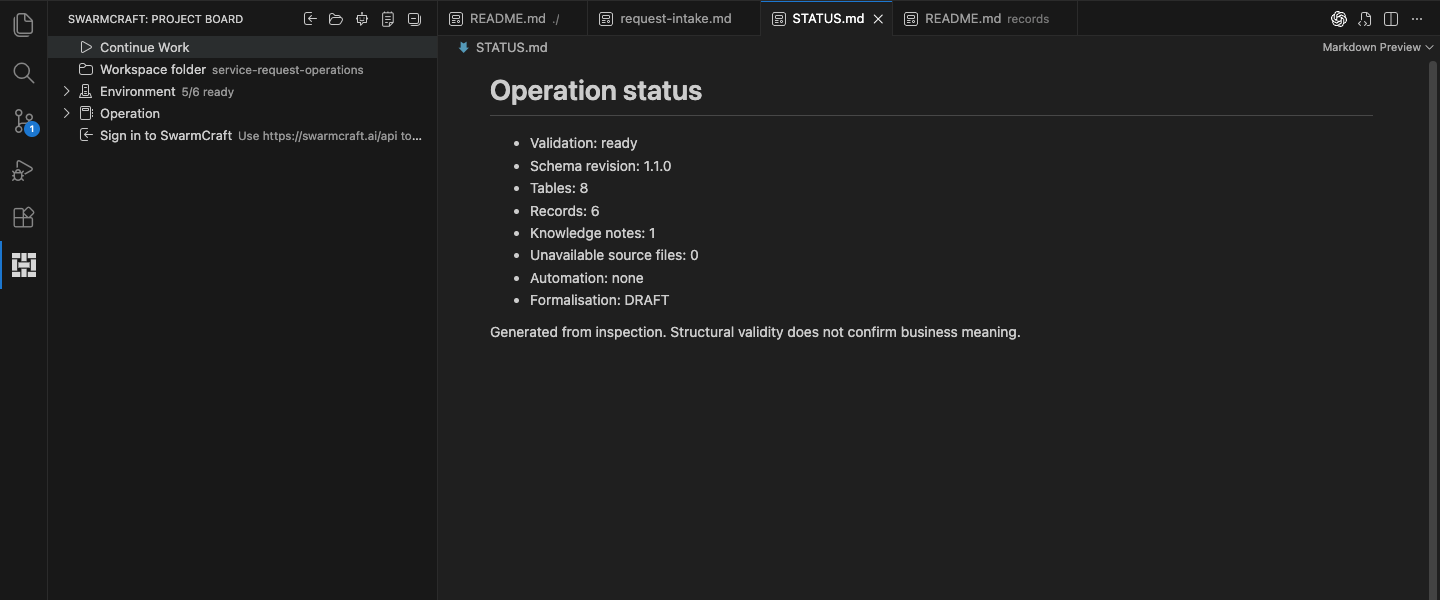
Status reports structural readiness and unfinished areas separately. A draft formalisation does not prevent continuing ordinary Work.
These are the default paths; an adopted repository may declare different folder names. The agent can locate them for you. Use Markdown preview to read the notes and guides. Current VS Code includes Mermaid rendering; if a diagram remains as code, check your VS Code version and preview before adding an extension.
Task facts belong in records, reusable steps and decisions in knowledge, meanings in terminology, and evidence in the source catalogue and dated imports. Generated deliverables go into dated exports. Chat discussion and temporary run notes are not substitutes for saved repository knowledge; reviewed checkpoints remain in local Git history.
Resume from the reviewed checkpoint
In the same repository's AI chat:
- Start Work again and say: “Continue from the last reviewed checkpoint.”
- Ask the agent to inspect the saved state and identify any unfinished review or validation before continuing.
- Give it the next useful task, or request a correction to the saved note.
You have completed this walkthrough when you can open the reviewed note, find the corrected term and supporting records, understand what remains uncertain, and identify the successful local checkpoint. You now have something concrete to resume and improve.
When useful, ask for a handbook of selected reviewed notes or an assessment of whether a bounded step is ready for automation. Use SwarmCraft AI skills explains Work, Import, Handbook, Automate and Formalise. You can keep using Work without creating an application.